
To speed up your DJ software workflow and eliminate set prep friction, incorporating hidden keyboard shortcuts and automated library tools across Serato, djay Pro, Mixed In Key, and Lexicon can save you hours of admin every week.
When you’re spending long sessions behind the decks or preparing tracks on your laptop, small workflow obstacles add up fast. Over the years at Crossfader, we’ve tested almost every software feature and music management utility out there to find what actually works in the real world.
Here are seven practical software and library workflow hacks we rely on every week to keep our library clean and our set prep fast.
1. Serato AM Mode: Keep Exclusive Tracks Hidden (Option + / / Alt + /)
If you play club sets or record mixes for social media, you’ve probably had someone lean over the booth to check out what track you’re playing. When you’re dropping personal edits, custom bootlegs, or unreleased dubplates, keeping those track titles private helps protect your unique sound.
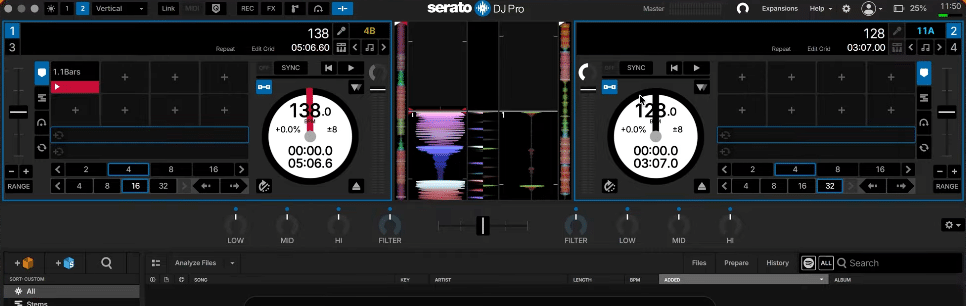
Serato DJ Pro includes a classic hidden feature called AM Mode, named after the legendary DJ AM. Pressing Option + / on Mac (or Alt + / on Windows) removes the track title and metadata from the top display banner instantly. The track keeps playing without interruption, but anyone peeking over your shoulder only sees a blank title bar.
If you want to get the most out of your library setup in Serato, take a look at our breakdown of Serato DJ 4.0 workflow updates.
2. Serato Auto Build Up: Instant Transition Shortcut (Shift + Option + T / Shift + Alt + T)
Transitioning quickly during a high-energy set can be tough if you’re caught off guard or need to shift genres fast. Serato DJ Pro includes an automated build-up shortcut that handles the heavy lifting for you on the fly.
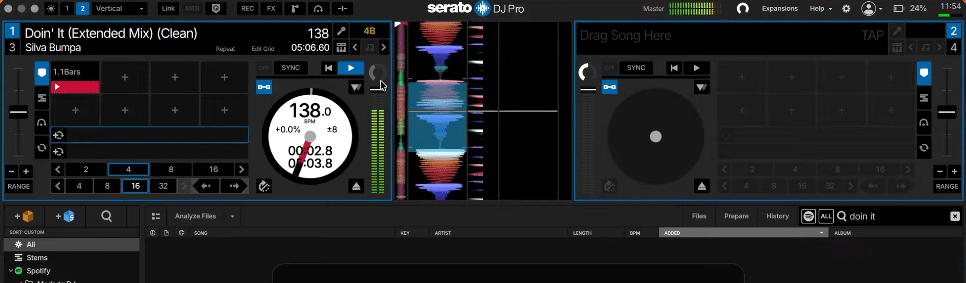
When a track is playing, hit Shift + Option + T on Mac or Shift + Alt + T on Windows. Serato automatically triggers a rising build-up effect while rapidly tightening an auto loop. It creates an intense build-up on the spot, giving you a smooth, clean window to drop your next track on the beat in a club environment.
3. djay Pro Live Remixing: Swap Drums and Bass On the Fly
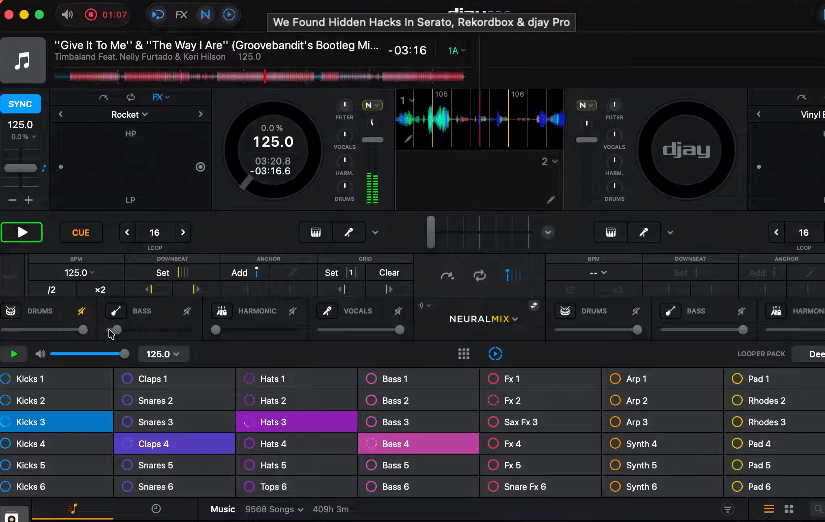
Algoriddim djay Pro features an advanced stem engine that very few DJs take full advantage of during live sets. Instead of just muting vocals or instruments, you can replace individual track elements live on the fly.
Using the stems tab, you can strip out the original drums from a song and trigger your own drum patterns using the built-in kicks, claps, and hi-hats. You can also isolate the vocal by removing the harmonics and original bass, then play your own basslines underneath. It’s a simple, creative way to construct live remixes during a gig or for a social media clip. You can also download extra sample packs directly from the Algoriddim website to expand your sound library.
Check out our guide to the djay Pro 5.3 update to see how the software handles stem crossfaders and performance controls.
4. Mixed In Key Live: Real-Time Desktop Key Verification
Relying purely on standard DJ software for key analysis can be risky when you’re prepping mashups or edits, as standard software gets the key wrong more often than you’d think.
Mixed In Key Live is a lightweight utility that sits in your desktop menu bar and listens to any audio playing through your system speakers in real time. Whether you’re playing tracks in Serato, working on an edit in Ableton Live, or auditioning audio in your web browser, it listens in the background and displays instant, reliable key feedback. You can also drag audio files straight from your downloads folder onto the utility icon to analyse the key and BPM in seconds before importing them into your main collection.
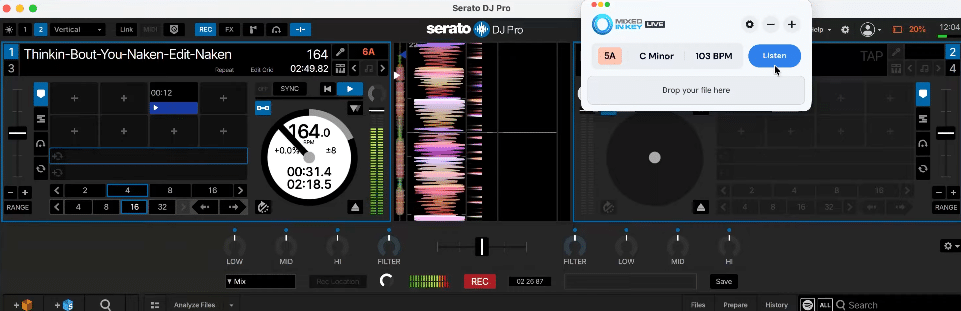
If you use key detection tools to build custom edits or mashups in your DAW, take a look at our Mixed In Key 11 Pro review or our step-by-step tutorial on how to make DJ edits in Ableton Live.
5. Lexicon DJ: Match Spotify Playlists to Your Local Files
When a client, venue, or event organiser sends you a long Spotify playlist for a private event, finding out which of those tracks you already own on your hard drive can take hours of manual searching.
Inside Lexicon DJ, you can copy the Spotify playlist link, open the search tool, and select Spotify Playlist. Paste the URL, and Lexicon scans your local storage to match the titles as closely as possible against your existing audio files. Once the matches appear, you can select the songs you want and save them directly into a fresh crate ready to export straight to Serato or Rekordbox.
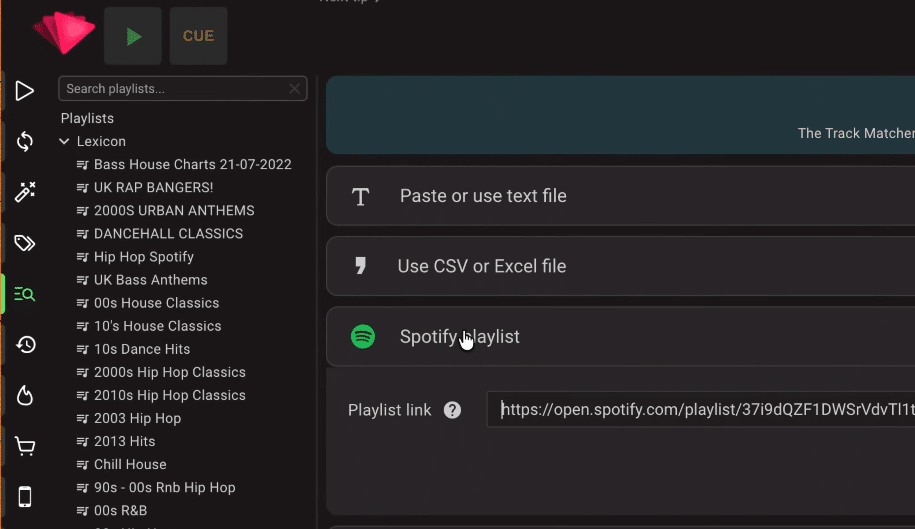
For a deeper walkthrough of the software, check out our full Lexicon DJ music management walkthrough.
6. Lexicon DJ: Find and Clean Up Duplicate Tracks Safely
If you’ve been DJing for years and downloading music from record pools, your library inevitably gets cluttered with duplicate files that eat up valuable hard drive space.
Lexicon DJ has a dedicated duplicate scanner utility that analyses your whole library or specific folders. It shows you essential metadata, including how many times you’ve played each copy across your collection. Once you choose which version to keep, Lexicon archives the duplicate copy rather than deleting it straight away. Your crates and playlists stay completely intact, and you can review the archived files in a separate window before permanently deleting them from your drive.
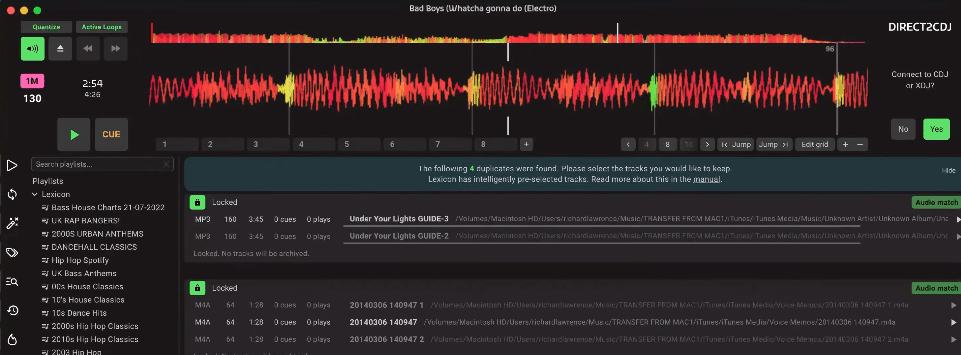
If you want more practical ideas for keeping your music library organised, read our guide on how to organise your DJ music collection and USB.
7. Lexicon DJ: Move Playlists Between Software in Seconds
Switching DJ hardware setups or moving between software platforms (like Rekordbox USBs for club gigs and Serato DJ Pro for home practice) used to mean rebuilding your crates from scratch.
Lexicon DJ makes cross-platform syncing simple. Open the Sync tab, choose Import Tracks, and select the playlist or full library you want to bring in. Once imported, go back to Sync, pick your target software (such as Serato DJ Pro), select your playlist, and hit Sync. When you open your destination software, your new playlist appears instantly with all your tracks and metadata ready to play.
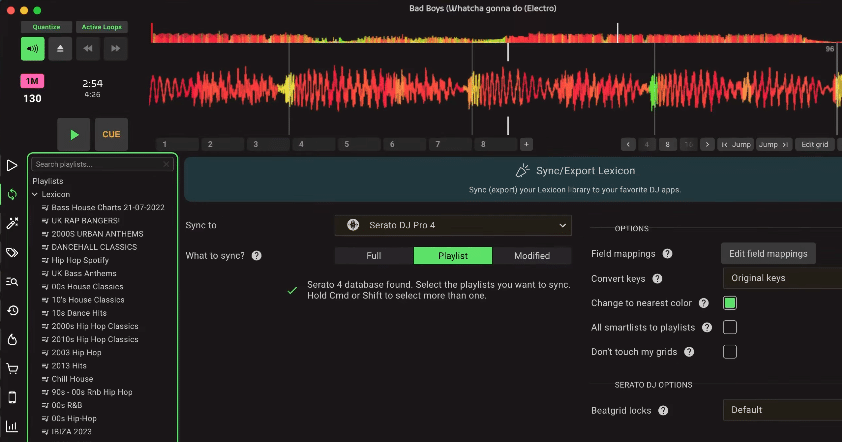
Level Up Your DJ Workflow
Having a clean music library and knowing your software shortcuts is a great start, but real progress happens when you follow a clear, structured path. Whether you’re trying to tighten up your transitions, master your software, or get ready for your first live gig, having expert guidance makes all the difference.
When you sign up for a free Crossfader account, you’ll get a personalised learning journey mapped out specifically for your gear, music style, and skill level.