
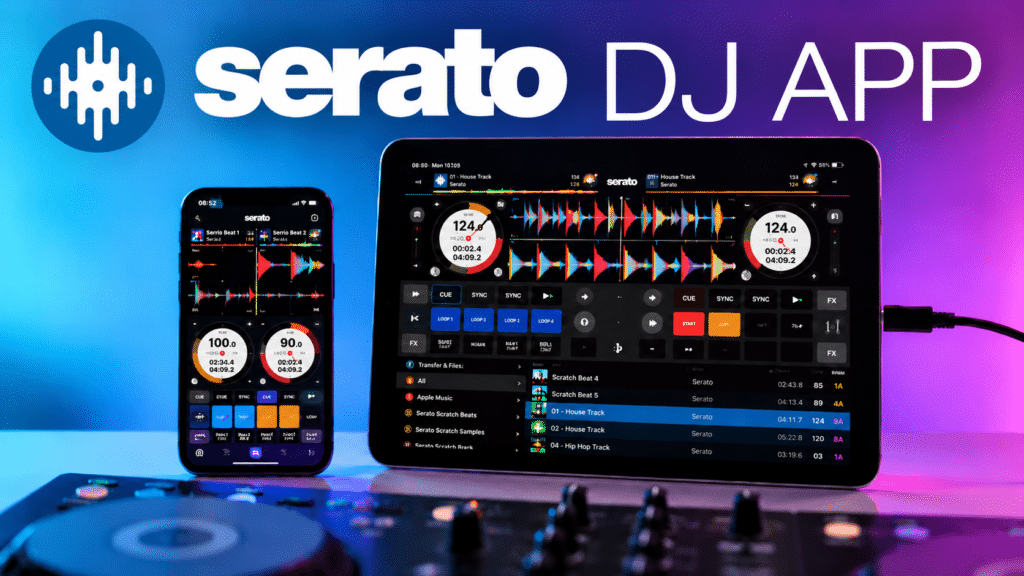
After years of waiting, Serato DJ has finally made it onto iPhone and iPad. The Serato DJ iOS app has launched alongside Serato DJ 5.0, and if you’ve used Serato on a laptop, you’ll feel right at home. It’s pretty much the same software you’re used to, with the same layout and features, just running on your phone or iPad.
Mobile DJ apps have been around for a while now and we’ve seen them growing in popularity with our members, so we were keen to see how Serato’s verison compares. We got our hands on it before launch and tested it four ways, starting with just the phone on its own and working up to a beginner controller, a pro controller and, finally, a pair of turntables with DVS.
Serato App Video Review
How much does Serato DJ for iOS cost?
The app is free to download, and you get a fair amount in the free mode. There are four hot cues, four sampler slots, Stems, auto loops, saved loops, pad FX and 20 FX slots, and it’ll work with a selection of DJ controllers.
To unlock the full version with all the fancy bells and whistles, you can either buy it outright on the App Store for $149, or if you’ve already got a Serato DJ Suite licence or subscription, it’s included at no extra cost.
The paid version adds:
- Support for every compatible controller, mixer and turntable, including DVS
- Recording
- Key sync and key shift
- Stems FX and all 59 FX slots, with up to 4-channel FX control
- Extra waveform views (vertical, horizontal and extended)
- Advanced pad modes like slicer and loop roll
So while $149 may seem like a crazy amount of money to drop on the App store, you’re basically getting the full Serato experience for that.
Getting your music on it
There are three ways to get music into the app. The first is streaming, with Apple Music, Spotify, TIDAL, SoundCloud and Beatport all supported. Once you’ve logged in, these show up in your library in much the same way they do on desktop.
You can also import songs or whole folders through the iOS Files app, which includes anything you’ve got in your Dropbox or Google Drive.
The third option is iOS Transfer, which, to us, is probably the more straightforward option most existing Serato DJs will end up using. This lets you send tracks and crates from your laptop to your phone or iPad with all their track info intact.
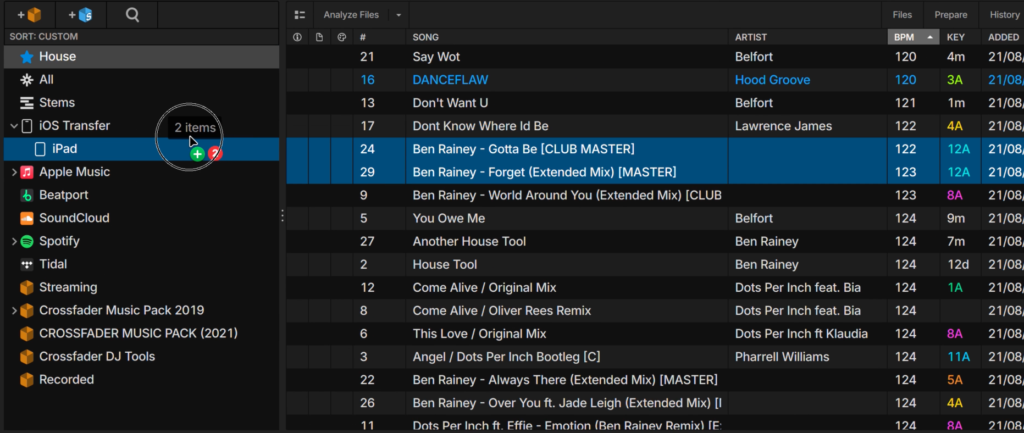
You open the transfer window, choose your device and drag across whatever you want. It works over AirDrop if you’re on a Mac, over Wi-Fi if both devices are on the same network, or with a USB cable.
When we tried it, a couple of tracks came across in a few seconds, and you can send whole crates across in the same way. Serato recommend you analyse your tracks on the desktop version beforehand and we’d have to agree as while you can do it on the app, it’s a bit more fiddly and the analysis might not be as reliable.
The downside is that every transfer creates a new folder named with the date, so you end up with a fair bit of tidying up to do on the device. Another big let down is that there’s also no cloud syncing. rekordbox and djay both have cloud library features now, where changes you make on your laptop automatically show up on your phone. With Serato currently, what’s going on in the app sort of feels a bit separate from your main library.
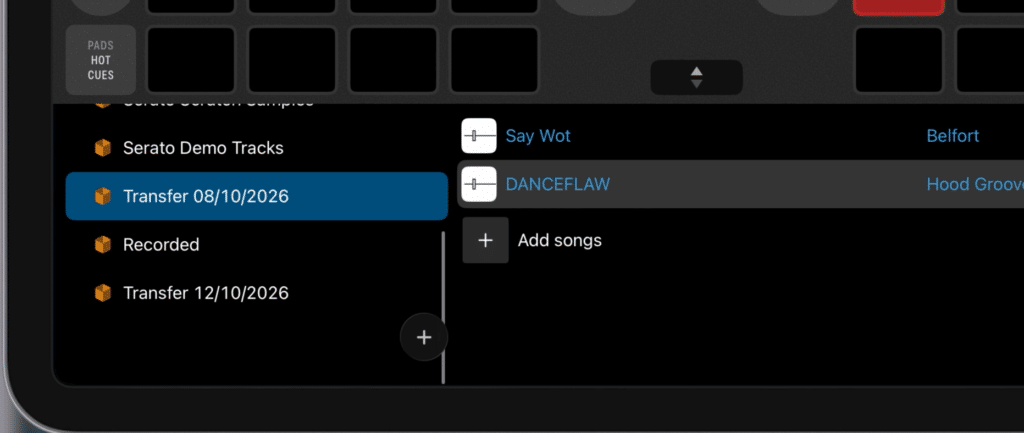
We’d expect Serato to improve how the desktop and mobile apps work together in future updates, but for now it’s the main thing we’d change.
Using Serato DJ on just your phone
Without anything plugged in, the app looks and feels a lot like Serato DJ on a laptop, so if you’ve used Serato before you’ll know your way around pretty quickly.
It’s usable one-handed in portrait mode, and you can reach most of the controls without much trouble, but really most DJs are going to want to turn it to landscape so it’s set up more like a proper set of decks.
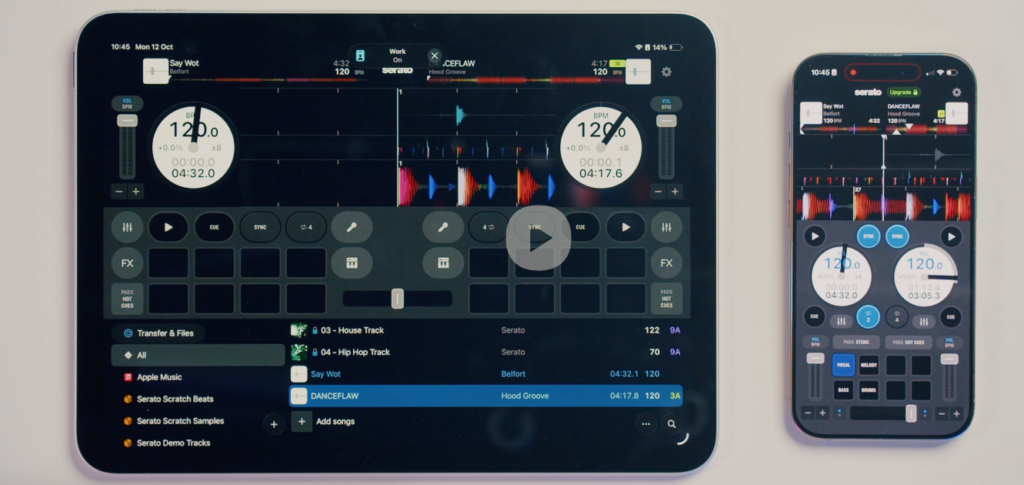
Serato haven’t been too stingy here and even on the free version there’s plenty to work with, including hot cues, Stems, the sampler and auto loops across the pad modes, plus your EQs and effects.
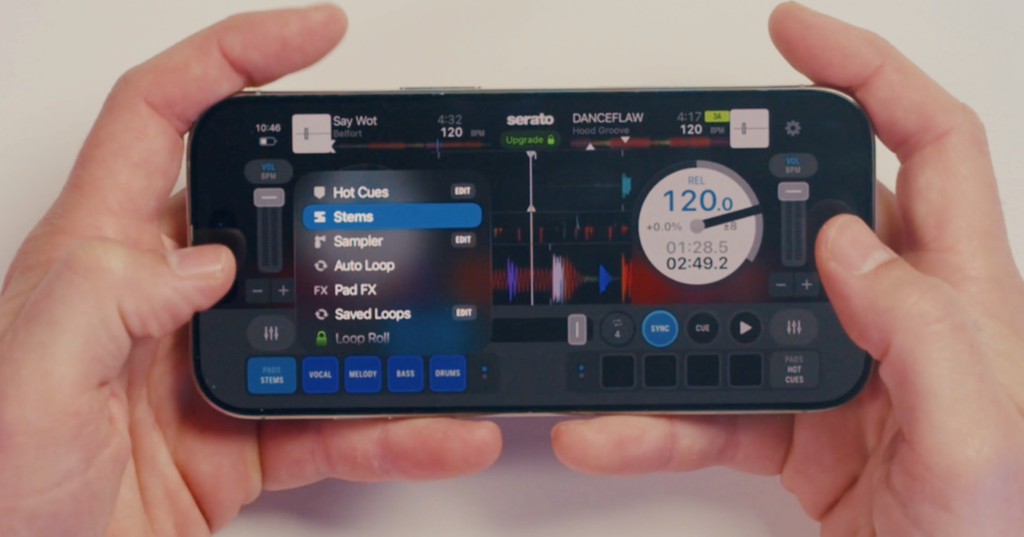
Tooltips pop up to explain what things do, and a lot of features are accessed by holding buttons down, like holding the loop button to choose a different loop length.
Mixing on the touchscreen is fairly intuitive. In our test we synced two tracks, used Stems to bring the new one in, then set a loop and shortened it to finish off the transition, all just using our fingers.
As with any DJ phone software, you’ve got a lot packed into a fairly small space so it can feel cramped and you can lose track of what’s going on. We’d also say djay is slightly more intuitive for using on a phone by itself, mainly because of how the buttons are laid out and sized.
Using Serato DJ for iOS with a controller
Where the app starts to really feel more powerful is when you plug some gear into it. Currently, it supports over 120 controllers, mixers and turntable setups from brands including AlphaTheta, Pioneer DJ, Rane, Numark, Hercules and Roland.
How you connect it up depends on which generation of Apple device you’ve got:
- USB-C iPhones and iPads (iPhone 15 and newer, plus most recent iPads): the controller plugs straight in, but you’ll need a multi-port adapter if you want to charge at the same time.
- Lightning iPhones (iPhone 14 and older): you’ll need Apple’s Lightning to USB 3 Camera Adapter.
Once you’re plugged in, the app recognises the controller and switches into hardware mode on its own, so you shouldn’t have to worry about the mapping and setup.
Beginner controllers
We started with the Pioneer DJ DDJ-FLX4, since it’s the most popular entry-level controller around and the one we’ve found a lot of new DJs start out on.
In hardware mode, the screen changes to show the pad modes that match the controller. Some features are locked because the FLX4 comes with Serato DJ Lite rather than Pro, so you can’t set the bottom row of hot cues, and key shift and a couple of shift modes are off limits. You do still get hot cues, pad FX, beat jump and the sampler, and the screen updates to show whichever mode you’re in. So overall, you’re probably completely set with just this base version most of the time.
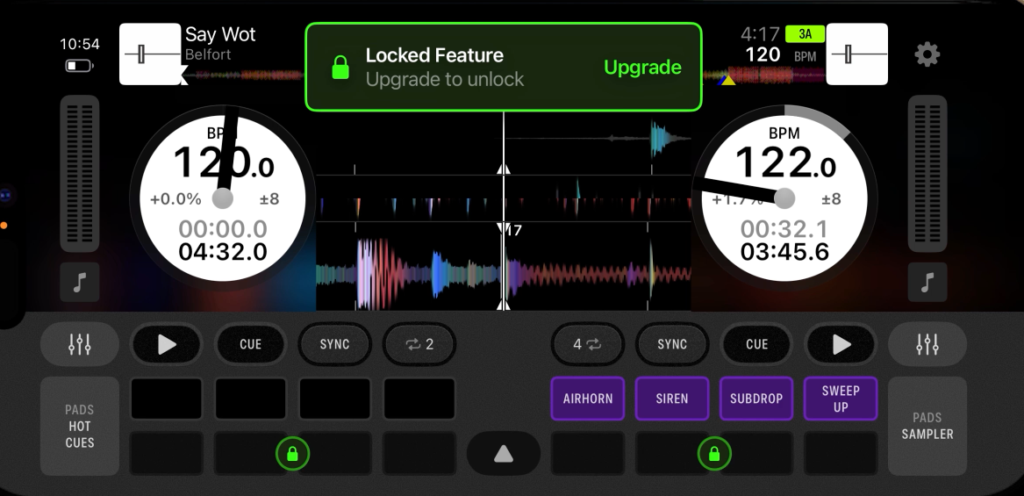
We were really impressed to see that the FLX4’s Smart CFX and Smart Fader, work in the app too. You can browse your library with the knob instead of the touchscreen, and overall the mixing feels responsive. Basically, there’s not too much to add on that front as it’s much like the desktop version, with all the controls mapped as you’d imagine.
Our one complaint is with the effects. The selected effect doesn’t stay on screen, so you have to go and check which one you’ve got on and which channel it’s assigned to, and it’s easy to forget you’ve left one switched on.
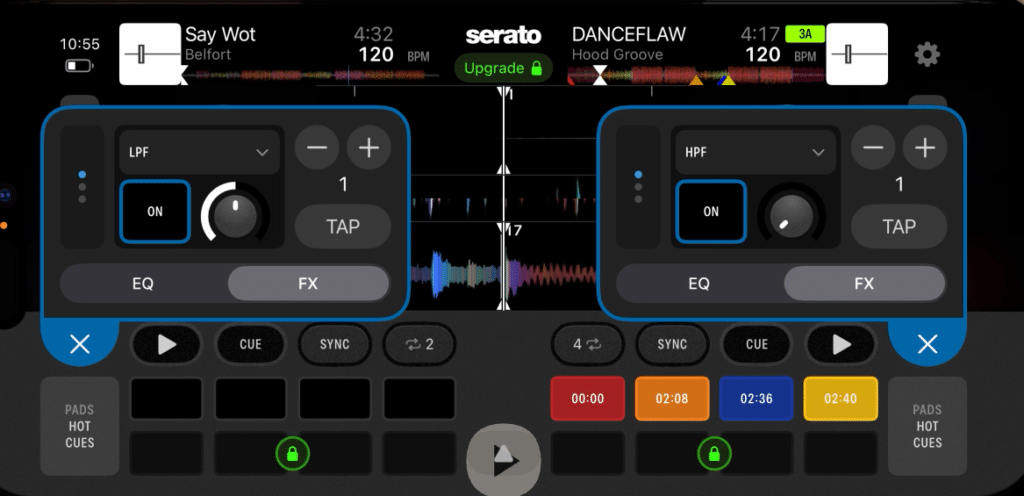
For sound, you can send audio through the controller or through your phone’s own speakers, but getting headphones and speakers both working from a mobile device can be fiddly and means using splitter cables. That’s true of any controller plugged into a phone or tablet, though, not just this app.
Advanced controllers
For the next test, we unlocked the full version on the iPad and plugged in a Rane System One. As an aside, having the iPad’s big screen is a big step up and makes it feel a lot closer to the desktop app.
The System One is fully mapped, including its built-in displays. Stems, Stems FX and Stems levels can all be controlled from the hardware and show up on the controller’s own screens, and the hardware effects work exactly as you’d expect them to.
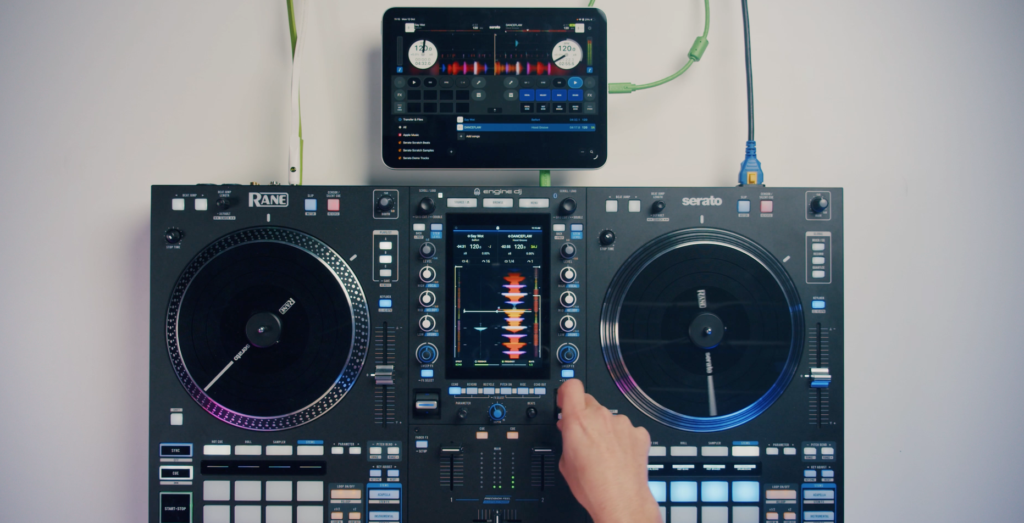
With the full version unlocked, you’ve also got access to every pad mode, including slicer, saved loops and pitch play, and key adjust works too. We were impressed at how seamless the switch from using desktop to mobile felt and if you want to swap your laptop for an iPad/iPhone, you won’t have to adapt much.
Using Serato DJ for iOS with turntables and DVS
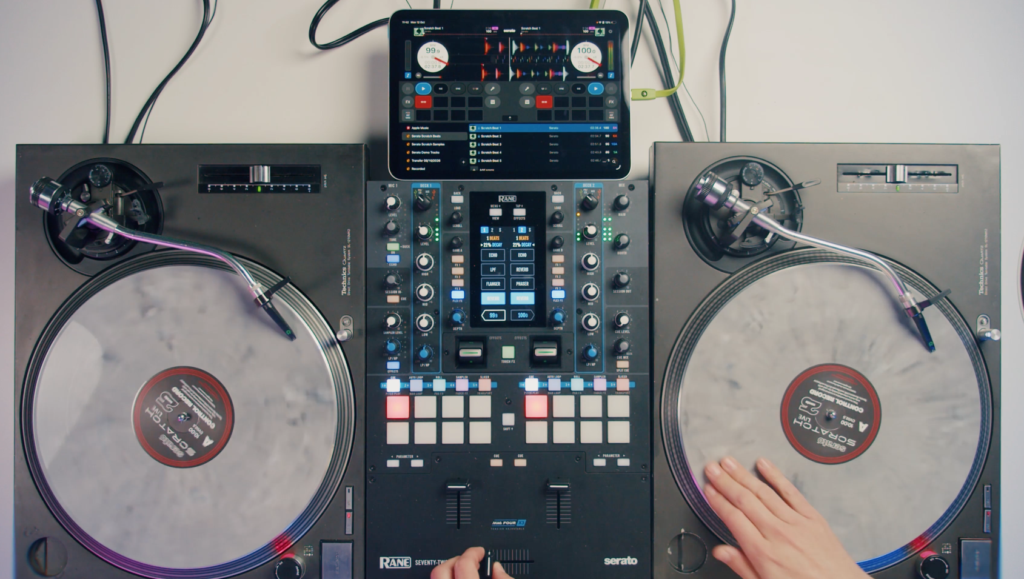
For the last test, we used a standard DVS setup, with control records, a Serato-enabled mixer and the iPad plugged straight into the mixer.
Getting set up is nice and easy. You go into the advanced settings, enable DVS and the calibration scopes are right there. We had 100% signal quality on deck one and 94% on deck two. You’ve also got the same settings you’d find on desktop, including absolute and relative modes, anti-drift, adjusting loops with vinyl and sticker lock.
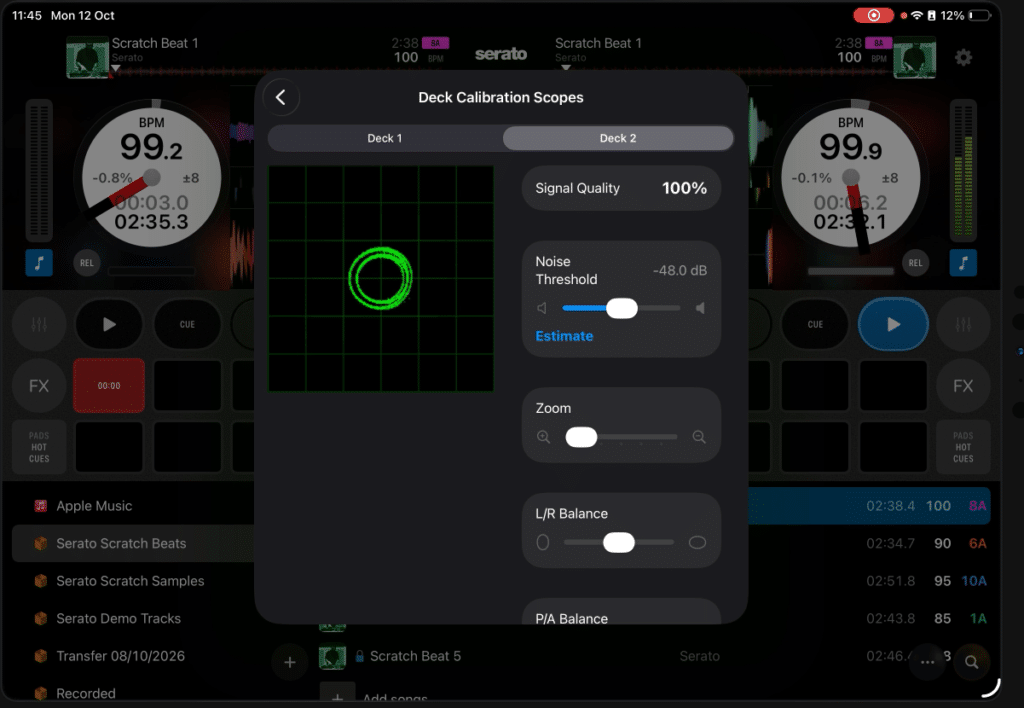
Again, the rest of the settings will feel familiar if you’re used to the desktop version. Audio latency, sampler volume, and library and display settings are all there, and you can even analyse your whole library from the app (although we’d still recommend using the desktop version if you can).
Mixing on this didn’t feel any different to using a desktop setup and with your eyes closed you’d never notice anything like latency as a giveaway, which goes to show how powerful modern mobile devices have become.
Is Serato DJ for iOS worth it?
So, can you actually play a proper set from your phone or iPad with Serato? We’d say absolutely. It held up well in every setup we tried, and for a first release, it’s a really strong start.
If you’re new to DJing, the app is free, so it’s an easy way to try out the basics. If you already pay for Serato DJ Suite, it doesn’t cost anything extra, so it’s worth downloading even if you don’t plan to play out from it.
There are a couple of drawbacks at the moment, and the biggest is undoubtedly the lack of cloud sync. Having to transfer your music across from desktop is a hassle, especially as a lot of DJs won’t be using this as their main setup.
The big question is how it compares to djay, the most popular DJing app out there. Both apps cater for everyone from complete beginners to DVS users, and both do a good job at either end. djay has more going on in terms of features and settings you can tweak, and it works really well as a beginner app that you can keep using as you improve.
Serato’s clearly been made more with its existing userbase in mind, although we imagine it’ll be built on for newer DJs over time. But as both are free, it’s worth checking them both out and seeing which one you prefer.
Learn to DJ with Serato
Whether you’re mixing on your phone or you’ve just plugged in your first controller, the app can only take you so far. You’ve still got to have the skills to back it up.
When you sign up to Crossfader, you get step-by-step courses taught by professional DJs, including our Serato DJ courses, which take you from beginner to advanced. Create a free account and you’ll also get a personalised learning journey based on your gear, your music and your experience level.