

Harmonic mixing with Rekordbox, Serato DJ, Traktor, CDJs and XDJs
Harmonic mixing is all about blending tracks that share the same or compatible musical keys so your transitions sound completely smooth and natural. While it used to take a fair bit of music theory to figure out, modern DJ software and hardware make mixing in key super simple. Let’s get stuck in!
What is a music key?
Before we jump into the software, let’s break down two basic terms you’ll hear all the time: key and scale. You don’t need to be a music theory expert to DJ, but understanding how these two work together will make harmonic mixing make a lot more sense.
1) Key: A collection of notes that group together to create a major or minor scale.
2) Scale: The notes belonging to a key in ascending and descending order by pitch, starting and ending on the root note of the key.
For example, if you know your current track is in C major, we can look at that key’s scale and see that the note G is part of it.
(C D E F G A B C)
Because G is in the C major scale, a song recorded in G will harmonically blend nicely into our track. On the flip side, the note F# isn’t part of C major, so a song in F# will probably clash.
If this feels a bit head-scratching, don’t worry about it. You don’t need to sit there memorising scales. Modern DJ apps detect track keys automatically and show you what will mix well.
Ways to show the key of a track
Musical keys follow a predictable pattern. That means we can map them out visually to see which keys sound great together without doing any math in your head.
Circle Of Fifths
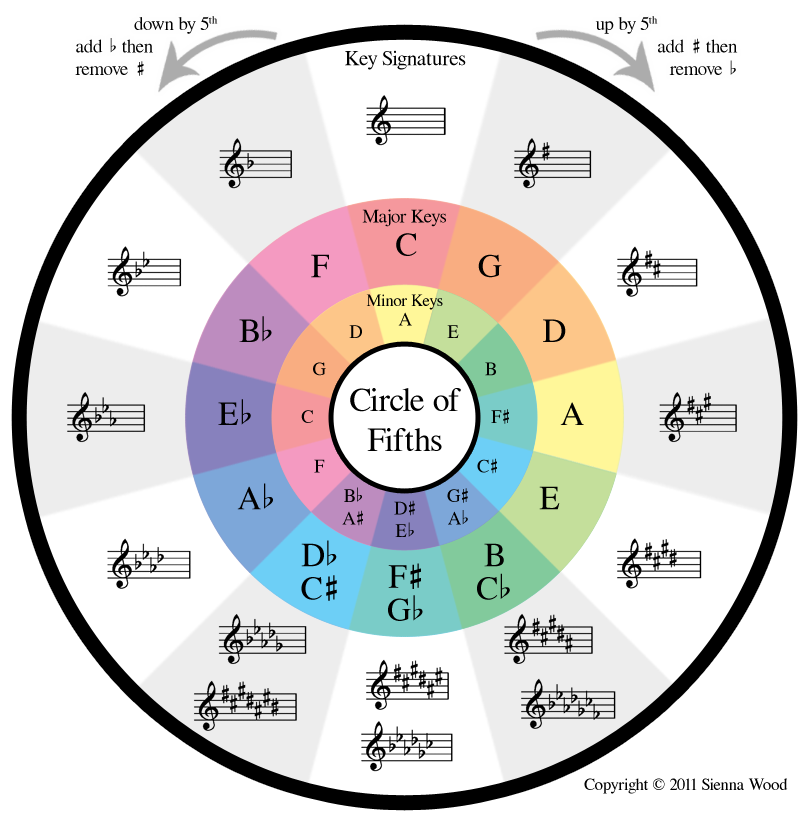
The classic diagram for this is the Circle of Fifths. It shows the relationship between all 12 tones in the chromatic scale and their matching major and minor keys in one simple wheel.
The Camelot Wheel
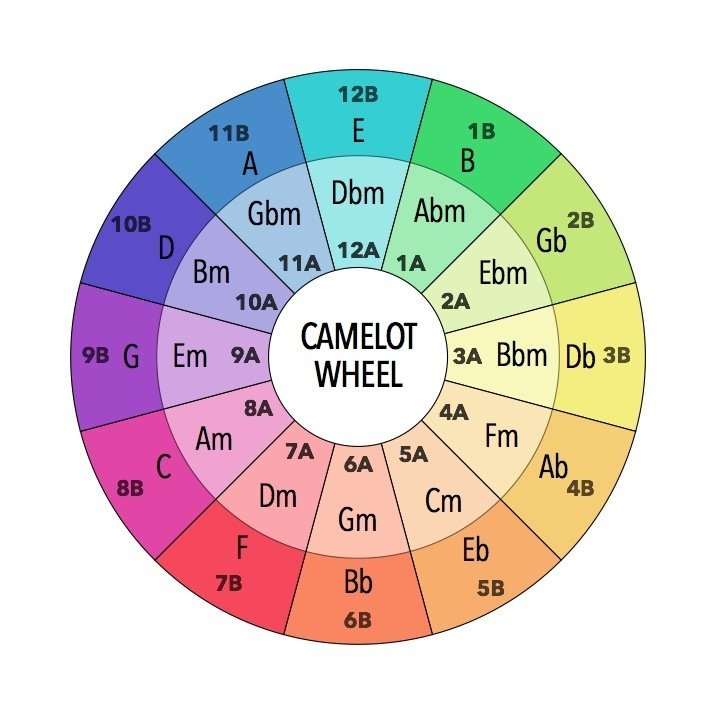
The Camelot Wheel takes that idea and makes it even easier for DJs. Instead of traditional key names like E minor or D flat major, it uses numbers and letters like 12A or 12B, along with a colour code. Minor keys get an A, and major keys get a B. Looking at the wheel makes it dead simple to see that a track in F (7B) will blend smoothly into D minor (7A).
Open Key Notation
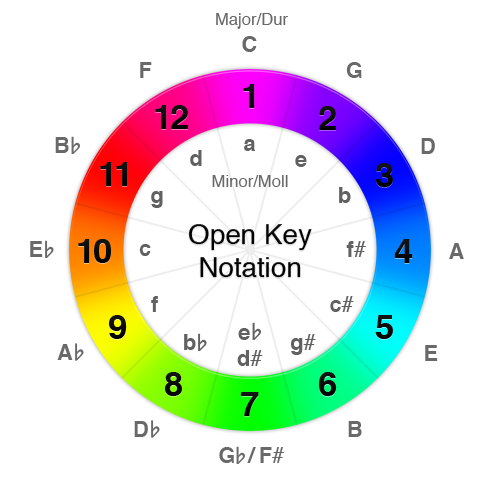
Open Key Notation is a similar system used in Traktor. The only real difference is that Open Key uses ‘m’ for minor (moll) and ‘d’ for major (dur) based on the German names. So F major becomes 12d, and D minor becomes 12m.
Camelot Wheel Interactive Tool
To see how this works in practice, try playing around with the interactive Camelot Wheel below. Just tap the key of the track you’re playing (like 8A), and the wheel will light up all the compatible keys you can transition into next.
Harmonic Mixing
The Camelot Wheel
Two tracks sit well together when their keys are close on this wheel. Tap the key of the track you’re playing — the wheel lights up every key you can smoothly mix into next.
Where to go next
Select a key on the wheel to see your compatible mixes.
How to read it
Each slice is a key, labelled in Camelot code. The number is the position on the wheel; the letter tells you minor (A, inner ring) or major (B, outer ring). The safest mixes are your current key, its two neighbours, and its same-number partner across the rings.
Legend
Camelot Wheel · harmonic mixing reference · Crossfader
Finding the key of a track
You don’t need a trained ear or years of music lessons to find the key of your music anymore. Modern DJ software analyses your library, tags the key, and puts it right next to the BPM. Here is how to set things up across the main DJ platforms.
Mixed In Key
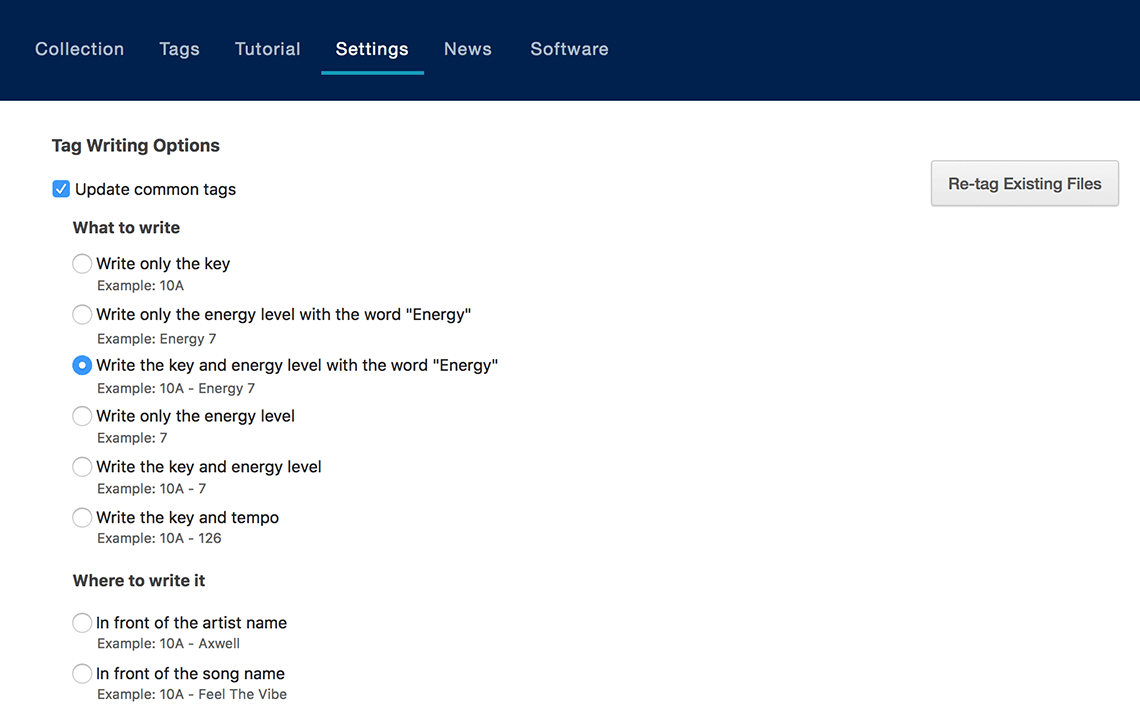
Mixed In Key is the standalone app that started the whole Camelot Wheel system. It is legendary for its key detection accuracy and works alongside whatever main DJ app you use.
- Analyses your tracks and writes the key straight into the music file metadata.
- Lets you choose where that key info goes, like the comments field, key tag, or track title.
- Writing the key into the track title is a lifesaver if you’re playing on older CDJs that don’t display standard key tags.
Serato DJ
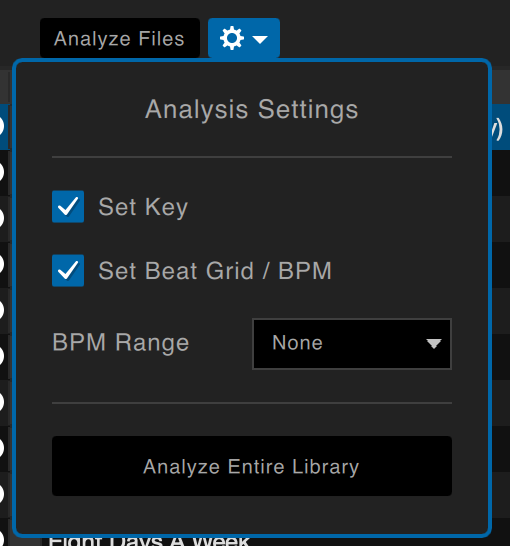
Serato DJ detects keys automatically when you analyse your library. It also gives you plenty of options for how that key gets displayed on screen.
- Make sure you tick the Set Key box in your Analysis Settings before running your tracks.
- Head to Library View > Preferences to pick your favourite format, whether that’s Camelot, Classical, or Open Key.
- To find matching tunes quickly on the fly, hold CTRL (or CMD on Mac) and click the Key column header. This organises your library by key while keeping your main BPM sort in place.

Rekordbox
Pioneer DJ’s rekordbox analyses keys as standard, but it defaults to showing them in classic music notation rather than Camelot codes.
- If you prefer Camelot tags, you can run your tracks through Mixed In Key first to write the numbers into the Comments or Title tags.
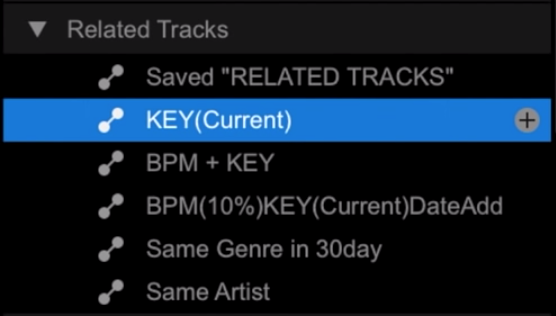
- Use the Related Tracks tab on the left-hand side of rekordbox to quickly find compatible tunes.
- Set the matching filter to Key, and rekordbox will list every track in your library that blends harmonically with the deck that’s playing.
Pioneer DJ CDJ/XDJ Multi-Players
When you’re playing out on club gear, modern players make harmonic mixing really visual right on the screen.
- Analyse your tracks with key info in rekordbox before exporting them to your USB.
- Connect the players together using a Pro DJ Link ethernet cable.
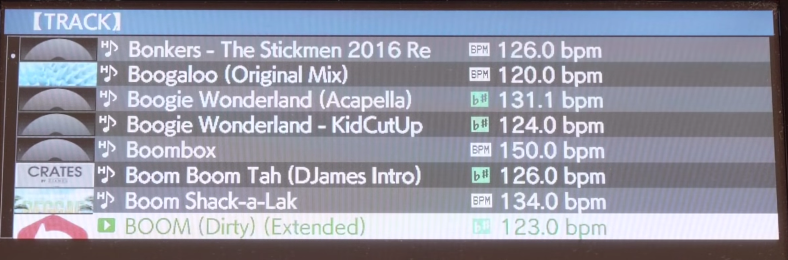
- When scrolling through playlists, any tune that matches the deck set to MASTER will show a green key icon next to the BPM.
- You can also search by key: select the green highlighted key of the playing deck, press enter, and the screen will show you every compatible song.
Traktor
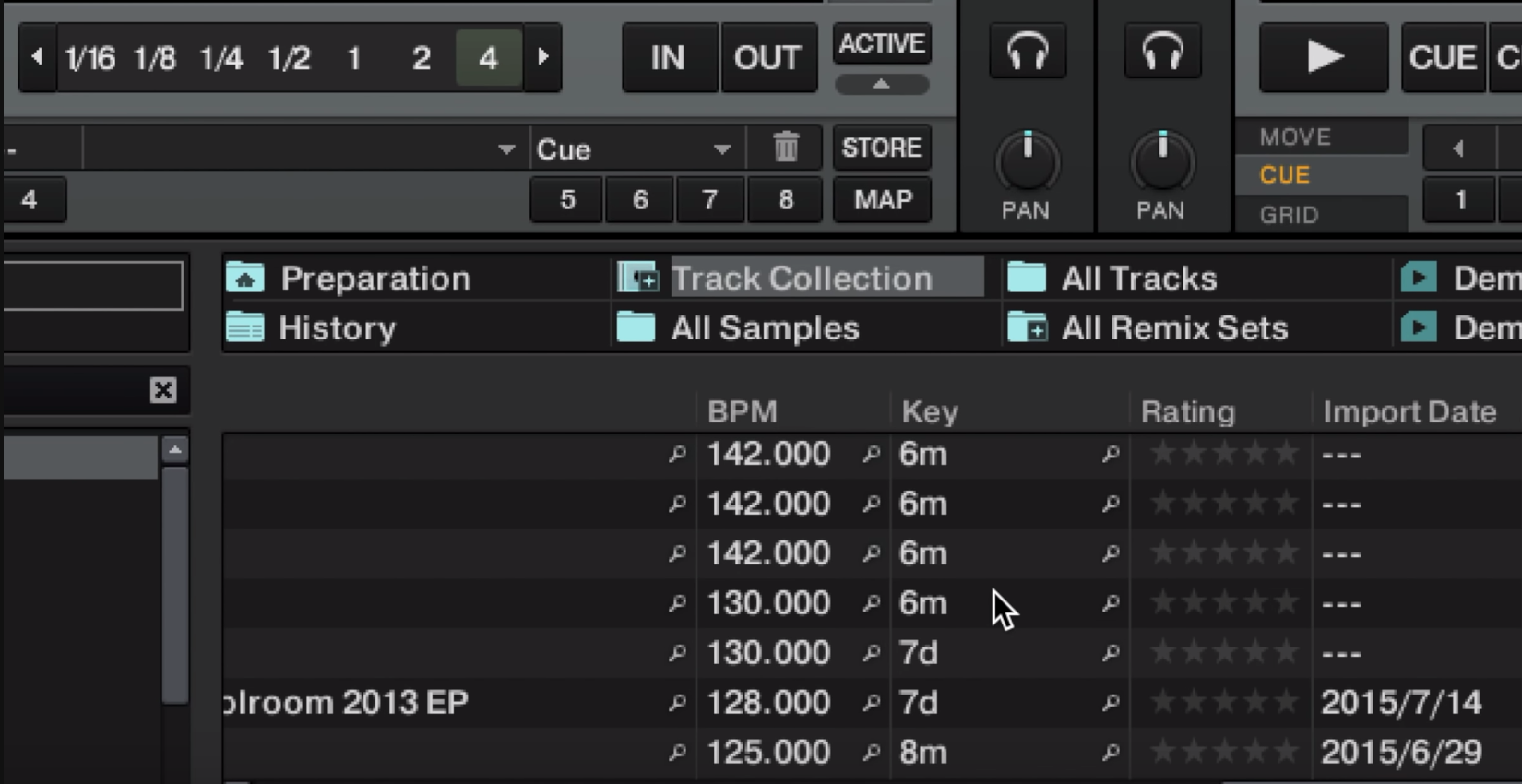
Traktor uses the Open Key Notation system. While it doesn’t have the colour coding you get in Serato, it has a handy shortcut for filtering compatible tracks instantly.
- Click the magnifying glass icon right next to the key of any track in your library.
- Traktor will instantly filter your library view to display only the harmonically compatible songs.
Should you always mix in key?
Now that you know how to find keys and set up your software, it’s time to start mixing. But do you actually need to stay in key for an entire set?
In short, it’s totally up to you. If you’re blending two tracks where vocals, synths, or heavy melodies overlap, mixing in key is huge because it stops things sounding messy or clashing.
On the other hand, if you’re transitioning during a stripped-back drum loop or a percussion break, harmonic key matters a lot less since there aren’t any melodic notes to clash with.
Harmonic mixing is a brilliant tool to have in your locker, especially for genres like house music that rely on long, progressive blends. But don’t let it become a strict rule that stops you playing a great track. At the end of the day, DJing is all about creativity and reading the crowd, so trust your ears!
Check out our guide on 3 Ways To Mix House Music to see how long blends work alongside other essential house techniques.
Video Tutorial
Do you want to learn more advanced DJ skills?
Now that you understand keys, take a look at our more advanced DJ courses!
DJ Transitions Course
8.5 hours
35 lessons
Creative
Tone Play DJ Course
2 hours
24 lessons
Creative
The Ultimate Scratching Course
5.8 hours
63 lessons
Creative

Complete DJ Package
835 hours
1300+ lessons
Creative

Open Format DJ Course
3.25 hours
64 lessons
Creative
For access to unlimited DJ tutorials and our industry-certified DJ courses, our Complete DJ Package is all you need in your journey to success as a DJ!
Get exclusive industry insights, tips and tricks. Jump onto any Crossfader DJ course you like with lifetime access to all of them! Master an artist mix breakdown or two and send us your mixes to get our professional feedback!
Complete Package members get the best of Crossfader, totally subscription free! Click the link to learn more and take your DJing to the next level with us, or your money back!
Thank you for that lesson. I have learned a lot about Mixing in Key and using the Camelot Wheel.
ok