
Can’t see your lesson on a Windows computer? Don’t worry!
If you’ve experienced a player error when trying to view a lesson whilst your DJ controller is connected, don’t worry. The issue usually lies within the audio settings of Windows. When a DJ controller or mixer is connected to a windows computer, it automatically becomes the main audio output. Unfortunately, it’s this change in the audio output that causes the player to crash. Here’s how we fix the issue.
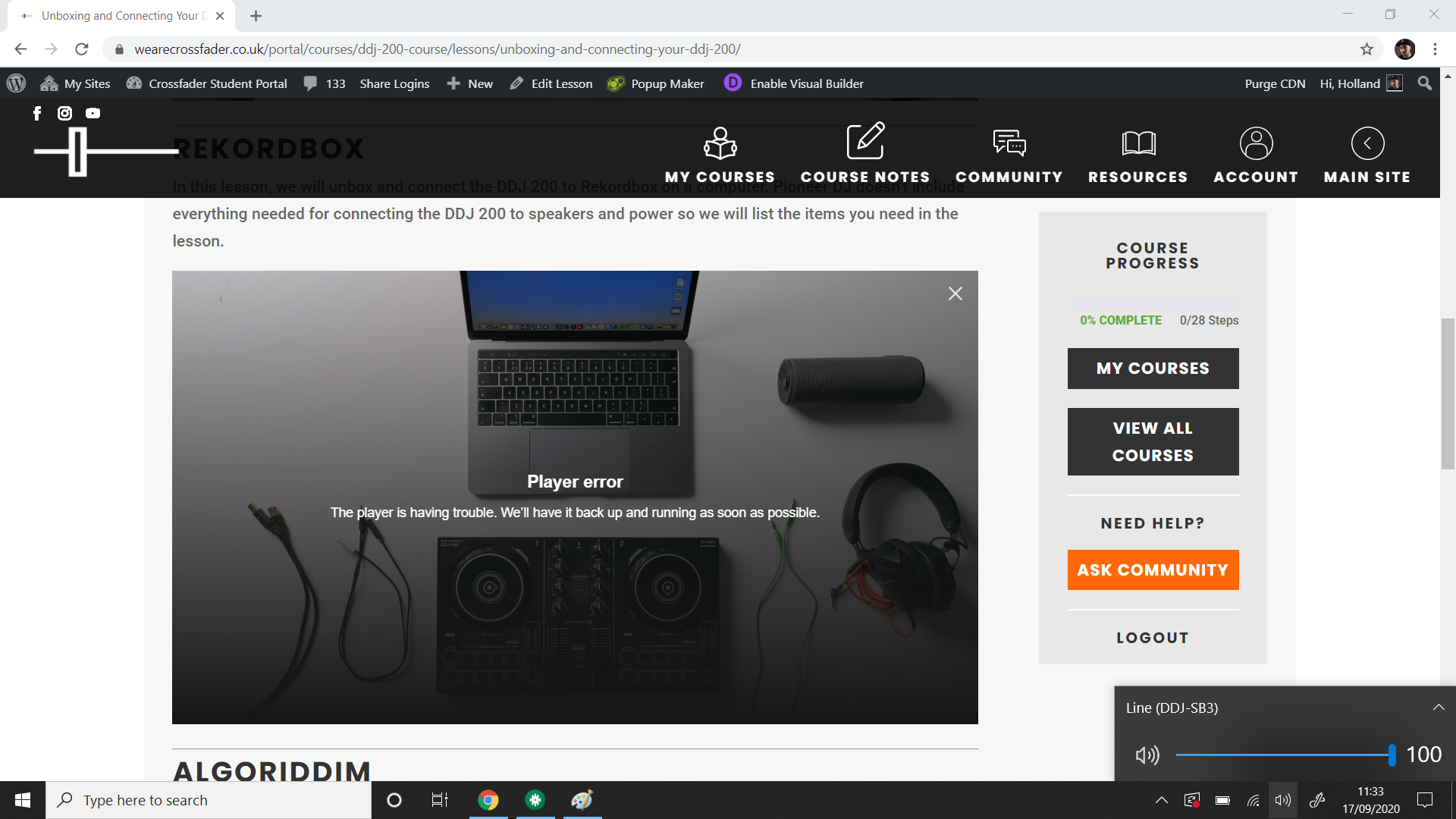
Step One – Check the computers audio output when an error occurs.
When the player error is shown, head down to the speaker icon in your taskbar. Click on the speaker to show the currently selected output. You will see that Windows has changed the output to your DJ controller.
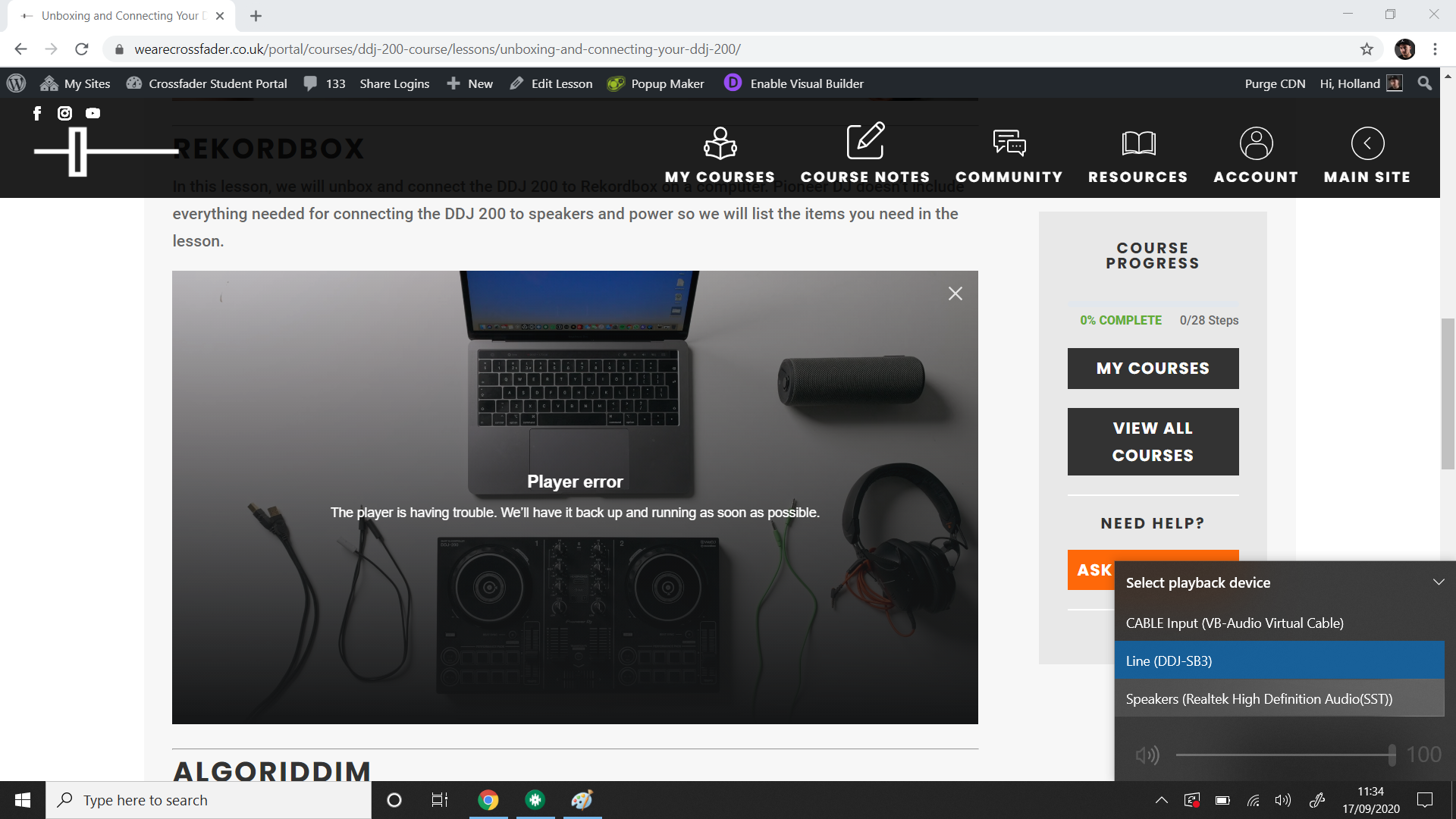
Step Two – Change the output back to computer internal speakers.
In the top right corner of the speaker pop out, click the up arrow to display a list of available outputs. Select your computers speakers rather than your DJ controller.
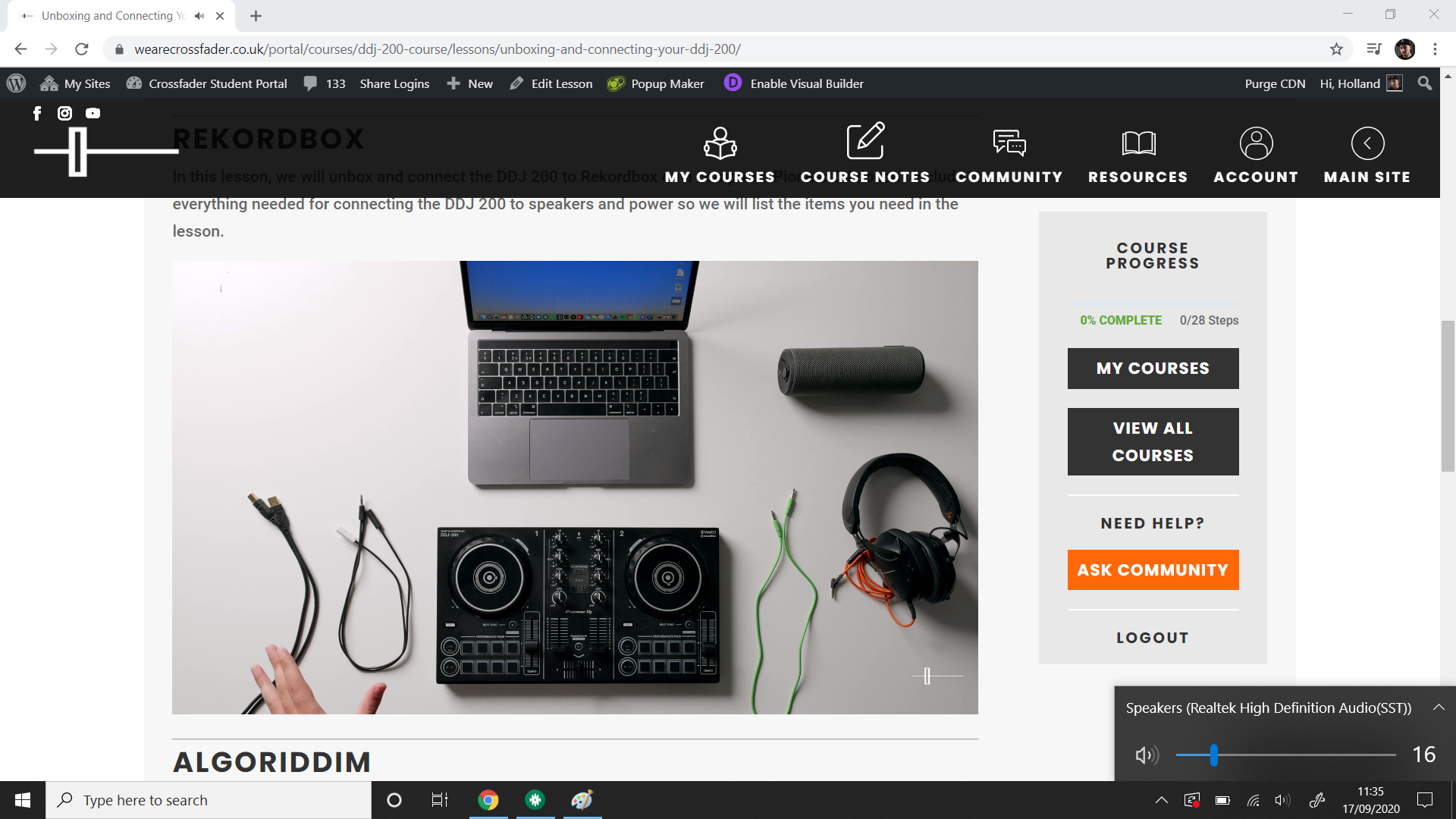
Step Three – Refresh The Lesson Page.
Now the issue is resolved, refresh the webpage. The player will reload and the lesson will again play normally.
Further Issues/Questions
Remember to check for updates to your web browser and computer, if the problem continues please don’t hesitate to get in touch in the lesson comments or the Discord.

Hello Jamie and Holland can’t watch the course on ma Mcbook now and really don’t know why….need help pls
Can you give us any more info as to why it’s happening? What happens to the video player? We always suggest trying to clear your browser cache and trying again.
Hi Guys!
I am Having issues to visualise my course from Windows, any idea on how to solve this?
Thanks
Hey!
What issues are you currently experiencing, is it the video playing lagging or stuttering? You can manually change the video quality in the bottom right corner of the player. This may help the courses play back smoother. Let us know how you get on!
Thanks
Hi Jamie can you view the course videos on your phone ?
Yes, you should be able to view them on your phone no problem. Just log in as usual on your mobile browser.